How to End an AI Song Cleanly: Outro, Fade, and Edit
Stop mid-bar cutoffs: write a landing section, choose ring-out or fade, then use EasyMusic Fade in/out, Extend, Edit Music, or Smart refine after generation.

You know the sound. The chorus is still climbing, the vocal is mid-phrase, and the file just… stops. Under a video, that cut feels like a bad edit. In headphones, it feels like the take was yanked out of the room. Ending a song is a musical decision, not a leftover second on a progress bar.
This guide is for creators who already have a strong EasyMusic take and need a finish that lands on purpose: a written outro, a natural ring-out, a controlled fade, or a surgical fix when the last phrase is wrong.
Why endings fail
Before changing the ending, listen for what is missing: a complete last phrase, a closing section, or enough time for the final sound to decay. Useful starting checks:
- Does the last lyric finish on a complete phrase, or does it die mid-word?
- Does the requested duration leave room for an outro after the final chorus?
- Does your lyric or style prompt describe how the song should stop?
These are practical places to look first. Section cues help, but they do not guarantee a complete finish on every take.
Write the landing before you generate
Give the model a place to go after the last hook. In EasyMusic lyrics or structure prompts, section labels help:
[Verse]
...

[Chorus]
...

[Final Chorus — fullest harmony]
We keep the light on anyway
We keep the light on anyway

[Outro — instruments fall away, last line alone]
Leave the porch light on
Leave the porch light on

[End]
For the next generation, try these changes:
- Name the job of the outro. “Instruments fall away,” “half-time,” “one vocal line,” or “held chord” are clearer than “emotional ending.”
- Shorten the last phrases. New story beats in the final four bars invite another lift. Closure prefers fewer words.
- Add an explicit end intent. An
[End]or “clean final chord / natural ring-out / slow fade” line tells the arrangement what kind of stop you want. - Do not invent a second chorus after the outro. If you need another hook, put it before the landing section.
Original lyric sketch (use your own story; this is only a shape):
[Bridge — quieter, almost spoken]
If the night keeps moving
I will meet it halfway

[Final Chorus]
We were never late, just careful
We were never late, just careful

[Outro — strip to piano and breath]
Careful is enough
Careful is enough

[End — held chord, natural decay]
If the take still restarts or clips, fix it after generation instead of burning the good middle of the song.
Choose the stop: ring-out, fade, or cold ending
Decide what the last two bars should feel like, then put that in the style or arrangement notes:
| Intent | What to ask for | When it fits |
|---|---|---|
| Natural ring-out | Final chord held; cymbals and reverb decay; no new lyric after the last line | Ballads, acoustic, anything that should sound like a room going quiet |
| Fade out | Gradual volume drop over the last several seconds; loop-friendly groove optional | Montage beds, social clips, tracks that should dissolve under dialogue |
| Cold stop | Hard final hit or tight last syllable; little or no tail | Punchy pop, rap tags, comic timing |
Be specific when you care: “final chorus, then four-bar outro, soft fade over the last three seconds” beats “epic cinematic finish.” Stacking every adjective often muddies the stop.
Also match duration to form. If you want verse / chorus / bridge / final chorus / outro, give the generate step enough length for that arc. A short target with a long lyric sheet is a common way to get a chorus that dies mid-bar.
After generation: Fade in / out on the finished song
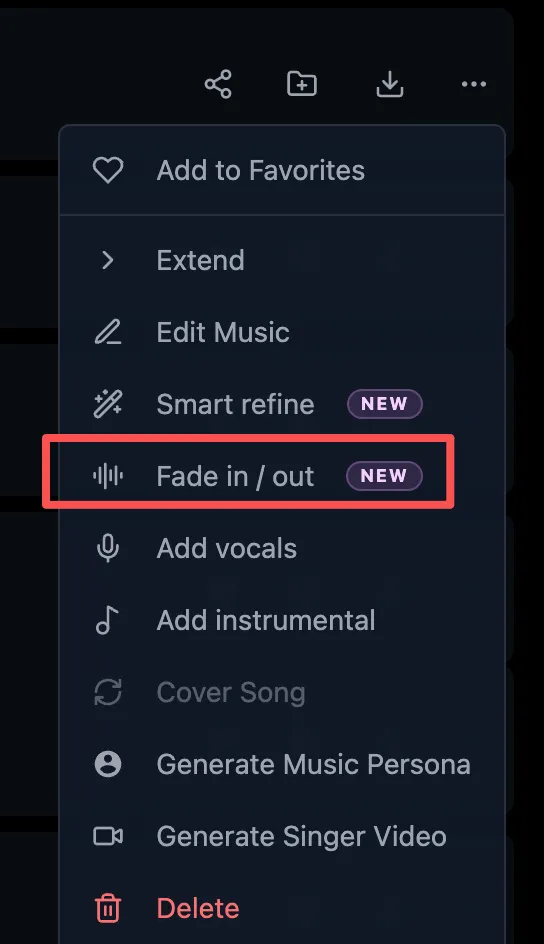
When the performance is right but the edge is harsh, open the finished track’s … menu and choose Fade in / out (labeled NEW). The same menu also offers tools you may need later for the same take—Extend, Edit Music, Smart refine, and related song actions—but start with fade when only the volume edge is wrong.
The panel is explicit about what happens next: you listen to the original, pick a direction, set a duration in seconds, name the new version, and create it. The original stays unchanged.
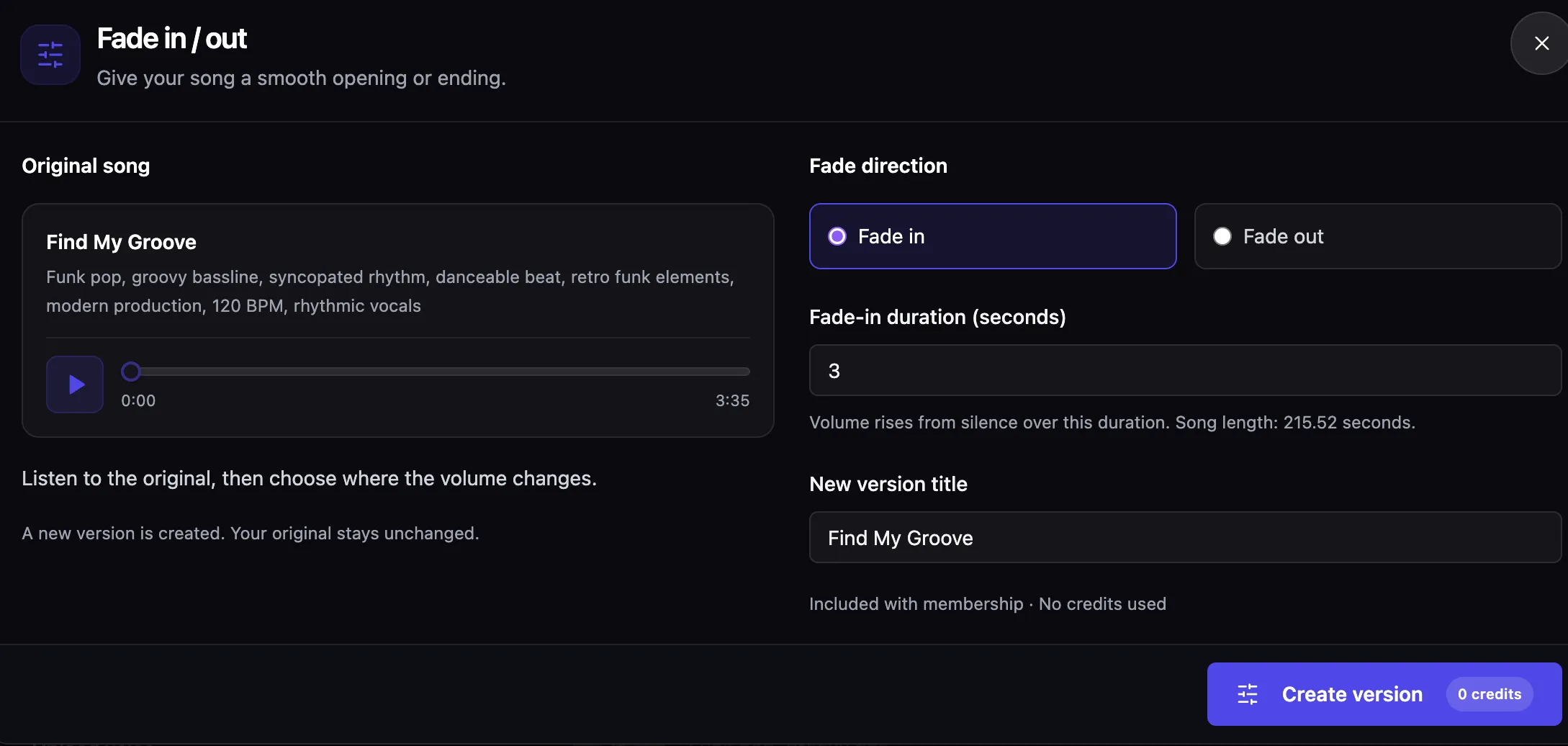
For an ending, choose Fade out, set the duration in seconds, confirm the new version title, and select Create version. Membership includes this at 0 credits, and the original stays unchanged. The screenshot shows Fade in selected; switch to Fade out for this task. Try 2–4 seconds as a starting point, then listen for whether the last word disappears too early. Lengthen the fade if the groove needs a slower dissolve; the panel reports song length so you can sanity-check the fade against the full runtime.
Fade shapes volume over time. It will not invent an outro lyric or repair a chewed last word. If the last phrase is wrong, fix the phrase first, then fade the clean take.
Extend from a clean cut point
Use Extend when the song needs more music after a good midpoint: a missing bridge, a better final chorus, or a deliberate outro the first pass never reached.
Choose a complete phrase before the unwanted ending as the handoff point. Listen across the join for a change in breath, groove, or loudness. The extend tutorial covers boundary placement and comparing versions.
If the model added a false ending and then restarted, extend from before that false stop with a shorter landing passage rather than asking for “more energy.”
Edit Music and Smart refine for a bad last phrase
Sometimes the form is fine and the final line is not.
- Edit Music suits a wrong or mis-sung final lyric. Compare the replacement with the surrounding phrase before keeping it.
- Smart refine suits a broader request, such as fewer drums beneath the last line. Describe the intended change and check what the new version actually preserves.
Both create a new version and keep the original. After either tool, listen through the join into silence—then apply Fade in / out if the edge still needs a soft landing. See the lyric editing and Smart refine tutorials for selection and instruction patterns. Structure cues for outros also appear in the song structure guide.
Honest limits: section tags are probabilistic; extend joins can need a second boundary try; fade does not fix arrangement clutter; Edit Music and Smart refine still need a human ear on the whole take, not only the last two seconds.
Checklist before you put the track under a video
- Last lyric lands on a complete phrase (no mid-word cutoff).
- Outro or end intent exists in the lyric/structure, or you extended one in.
- Stop type matches the picture: ring-out, fade, or cold stop—not accidental silence.
- If you used Fade in / out, you picked Fade out, set seconds deliberately, and downloaded the new version.
- Loudness of the last bar matches the rest of the song; a sudden drop under dialogue is fine, a sudden jump is not.
- You A/B’d the original and the ending version at the same monitoring level.
- Export length covers any spoken outro or logo sting you plan to leave after the music.
Listen once from the final chorus through the end. If the last phrase is incomplete, repair or extend it first. If the phrase works and only the cutoff feels harsh, try a fade.
If you want to try the full loop on a song of your own, EasyMusic keeps the original take while you shape the ending.