How to compare AI rap video tools: theme lyrics, speed, and reference audio
A practical checklist for short rap performance clips: theme vs exact lyrics, style fit, generation time, and when paid reference audio is worth it.

Disclosure: this journal is run by the EasyMusic team. EasyMusic is one of the tools mentioned below. Speed and chorus claims are our product-team comparisons, not third-party lab scores. Facts below match our public AI Rap Video page as of October 25, 2026.
Say you are testing a 10-second English trap hook for Instagram Reels. Opening five “AI rap video” tabs will not tell you which one fits—unless you fix the same inputs on each run. The useful differences are usually who writes the bars, which style you lock, how long you wait, and whether paid reference audio can steer voice or groove.
This article is a user-side comparison workflow. It uses EasyMusic’s AI Rap Video Generator as a concrete example because that is the product we ship, and we link the public page so you can verify wording yourself. The same checklist works on any Seedance-class or in-house pipeline you open in another tab.
Decide what “good” means before you click Generate
Write one sentence you can check on playback:
I need a __-second clip in __ (language), for __ (platform), where I care most about __ (clear bars / style energy / face continuity / turnaround time).
Without that sentence, every take “looks cool” and none of them settles the choice. Keep the sentence next to your notes; change only one variable per retry.
Path A vs Path B: theme compose or exact lyrics
EasyMusic offers two input modes. Check which inputs the other tool accepts before you choose a comparison pair.
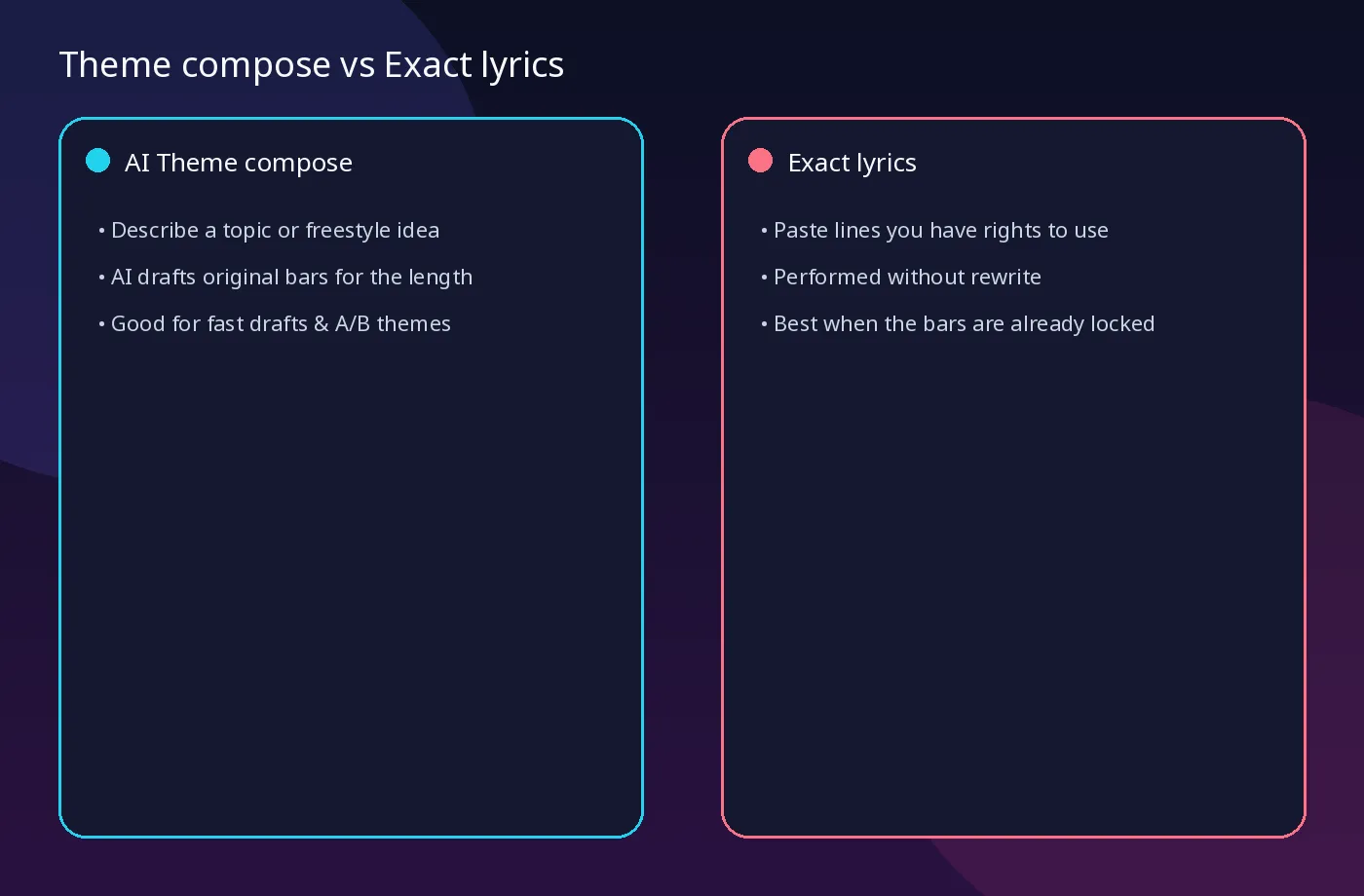
Theme compose. You describe a topic or a freestyle idea. The system drafts rap lyrics from your theme—then check whether the wording fits the selected duration. Useful when you are still hunting for a hook, or when you want three themes in one sitting.
Exact lyrics. You paste lines you have the right to use. The performance should follow that text without rewriting it. Useful when the bars are already locked for a campaign, a cypher, or a language-specific punchline.
On EasyMusic these appear as “AI Theme compose” and “Exact lyrics.” Matching lyric density to the chosen seconds (6 / 10 / 15 on paid Max, or the free 10s Lite preview) is safer than stuffing a full verse into a short clip: read the lines aloud against a timer first.
Lock a style before you judge the model
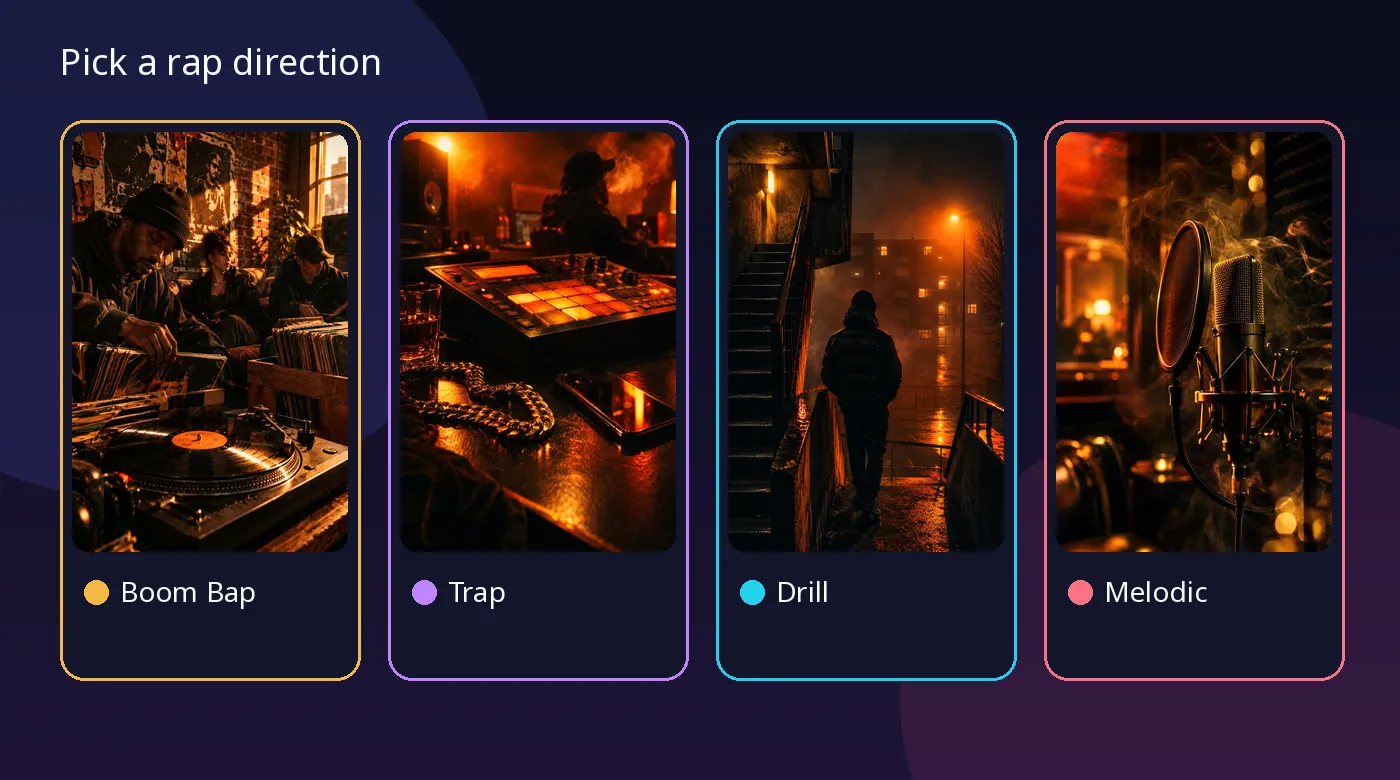
Style names are not decoration. Boom Bap, Trap, Drill, and Melodic Rap push different pocket, vocal attitude, and visual energy. If Tool A is on Trap and Tool B is on Melodic, you are not comparing models—you are comparing briefs.
Run the same theme (or the same exact bars) through two styles only after the first style is stable. Note which one keeps consonants readable at your language’s speaking rate.
Solo vs multi-person chorus (team claim)
According to the EasyMusic team, the product supports solo and multi-person chorus performances. That claim does not by itself establish separate control of each voice or ad-lib layer. If your brief needs stacked voices, note what the other tool actually returns on the same brief before spending a batch of credits.
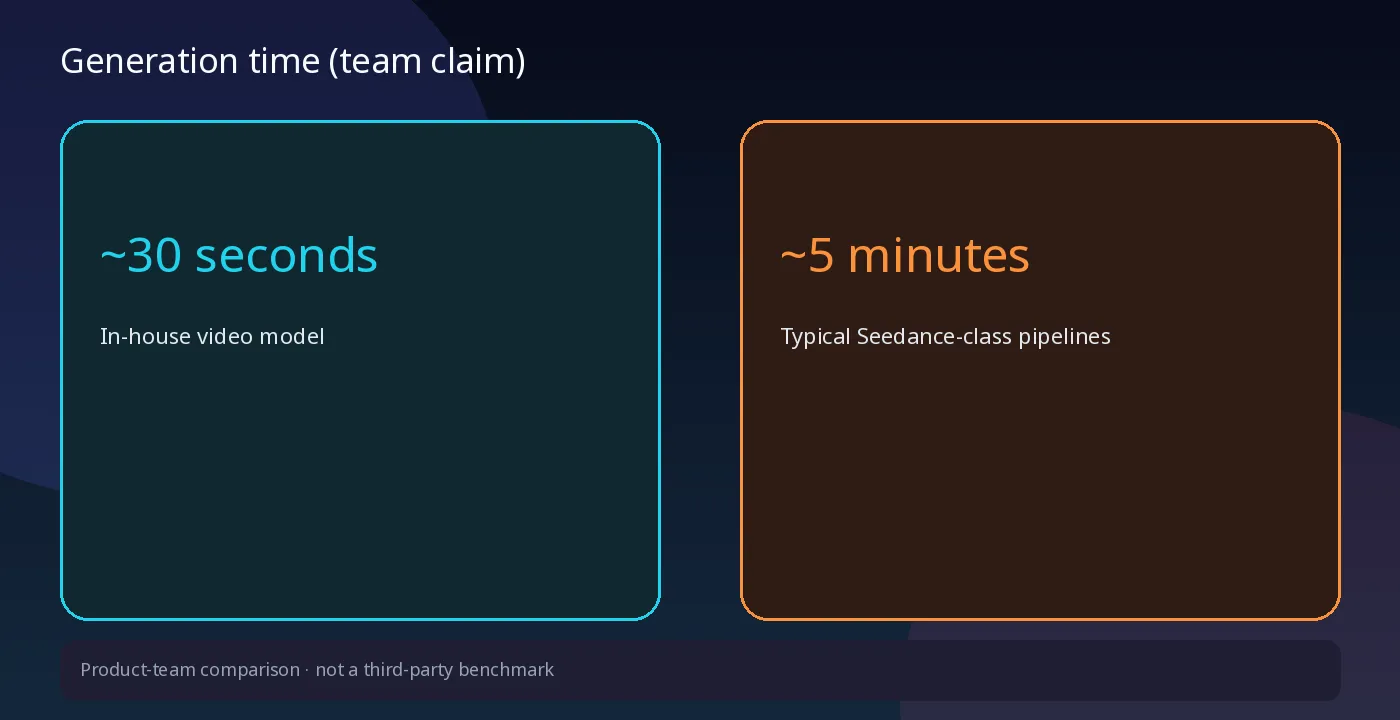
Generation time: ~30 seconds vs ~5 minutes (team claim)
Waiting time changes how many equal A/B tests you can finish in an afternoon. Our team’s comparison: EasyMusic’s in-house video model typically returns on the order of ~30 seconds, while many peers that route through Seedance-class pipelines land closer to ~5 minutes. Treat those figures as our product-side claim, not a published third-party benchmark. Compare the same number of outputs for quality, and record waiting time as its own column.
Reference audio: paid steering, not a free default
Reference audio—your own voice, or a short track whose style, rhythm, or timbre you are allowed to reference—is marked as a paid feature on our rap video page. Use it when you specifically want to test voice color or groove against a default take. Only upload audio you have rights to use, and expect a rights confirmation step.
If a competitor offers a similar control, write down: format limits, whether it is free or paid, and whether it changes lip sync or only the musical bed. Same theme, same length, with and without reference audio, is a fair test.
Free tier honesty: one 10-second Lite 480P preview
After login, each EasyMusic account gets one free 10-second Lite 480P preview that does not spend credits; trial playback includes an EasyMusic watermark. Paid Max is 768P at 6 / 10 / 15 seconds and 40 credits per second, with credits refunded on failed paid jobs. That is enough to learn the flow, not enough to batch a campaign for free. Never read “free preview” as unlimited access, and do not treat the free tier as a commercial license—check pricing for commercial terms.
First frame: selfie, virtual character, or none
Optional first frame: your authorized photo, a virtual character, or skip the image for a vertical scene. The page lists 9:16 and 16:9 formats—check framing before you generate. Do not upload celebrity or other people’s faces without permission. Timing and lip sync can vary; use the same face policy on every tool you try.
A fair side-by-side protocol (30–40 minutes)
- Fix language, length, and the one-sentence goal.
- Pick either theme compose or exact lyrics—do not switch mid-run.
- Lock one style (e.g. Trap).
- Prefer matching tiers when judging picture quality (for example paid Max vs the other tool’s paid short clip). Use the free Lite only to learn EasyMusic’s controls, or note watermark/resolution differences if you must include it.
- Score quality on the same number of outputs: bar clarity and style fit. Log wait time and reference-audio effect in separate columns.
- Change one variable for the next pair.
Write the scores in a table. A longer queue is a workflow cost, not automatic proof of worse picture.
What this page is not
It is not a full-length MV storyboard studio, and it is not “upload a finished song then auto-edit a video.” It is theme-or-bars → short performance clip, with optional face guidance and optional paid reference audio. If you need long-form narrative cuts, keep a traditional editor in the chain.
Worked mini-example (hypothetical)
Theme compose, Trap, 10 seconds, English:
Theme: night-bus last stop, quiet flex, no brand names.
Note after playback (example rows—fill with your own ears):
Tool | Clarity | Style fit | Wait | Notes
A (EasyMusic Max 10s) | bars readable | trap pocket OK | ~30s claim | —
B (other short clip) | mumbled line 2 | brighter hat | ~5 min claim | —
Next: same Exact lyrics on both; still Trap; no reference audio yet
Costs to budget if you move to paid Max: 240 / 400 / 600 credits for 6 / 10 / 15 seconds at 40 credits per second.
Wrap-up
Compare AI rap video tools on the inputs you can actually control: theme vs exact lyrics, style lock, solo vs chorus needs, wait time, and whether paid reference audio is available under clear rights rules. Verify current limits on the AI Rap Video Generator page before you spend credits. For broader song work outside short rap clips, start from EasyMusic and the docs tutorials when you need editing, stems, or longer tracks.